PNG-1.png?width=120&height=31&name=AIPOWER%20LOGOPrimary%20logo%20(Colour)PNG-1.png)
1. Create an installer account
2. Create a system for a customer (you are here)
3. Transfer a system to a customer
 You can always click the question mark in the top right corner to get help directly on the platform.
2.1. Create a new system / Add plant
Add a new plant from the menu on the left.
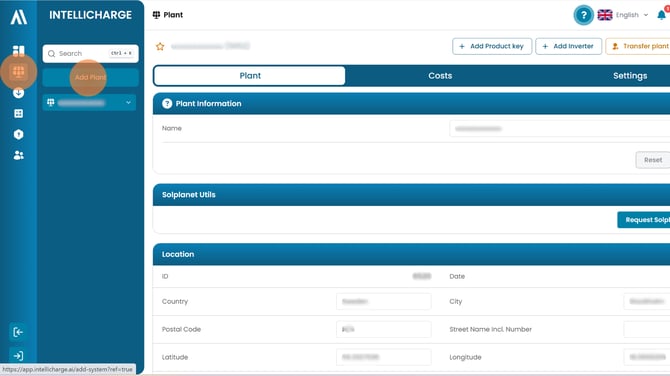
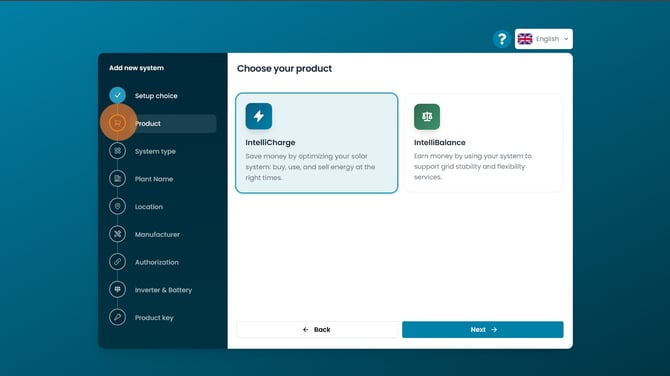
2.2. Select product
Select the product that matches the customer’s needs. With IntelliCharge, the customer can save money by optimizing their system so energy is bought, used and sold at the right times. With IntelliBalance, the customer can generate income by using their system for grid balancing while contributing to a more stable electricity grid through flexibility services.
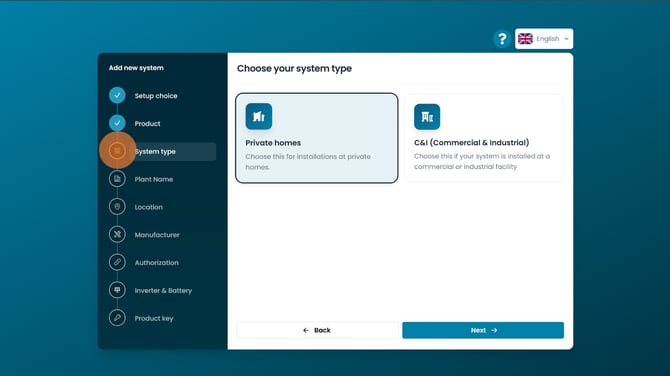
2.3. Select system type
Select the system type that matches the installation you are setting up. Choose ‘Private home’ if the system is for a private home, or ‘C&I (commercial and industrial)’ if the system is located at a commercial or industrial facility.
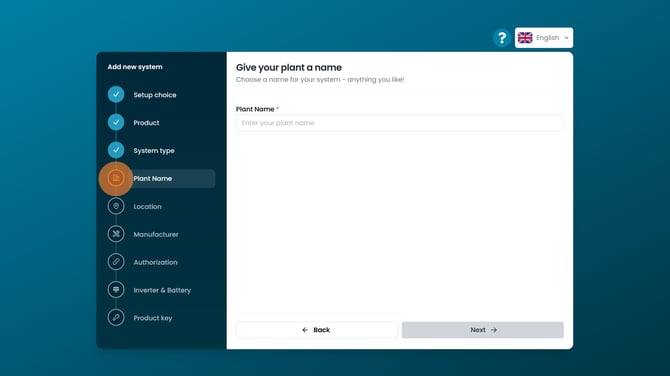
2.4. Choose a name
You can choose the system name yourself. It must be at least 5 characters. For example, use the address or a name that is easy to recognise if you manage several systems from your account.
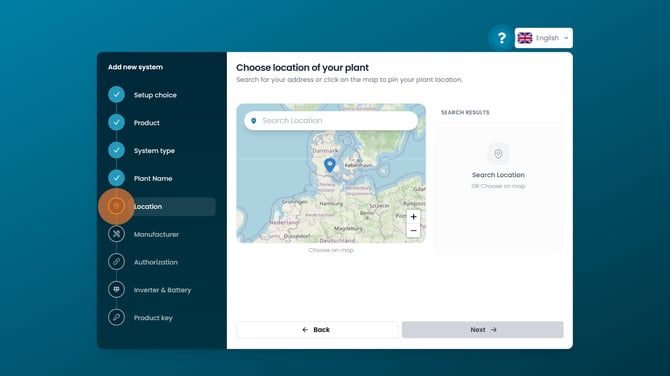
2.5. Select system location
Search for the customer’s address in the search field, or use the map to select the system location. The location is used, among other things, to access weather and production data for the customer’s system.
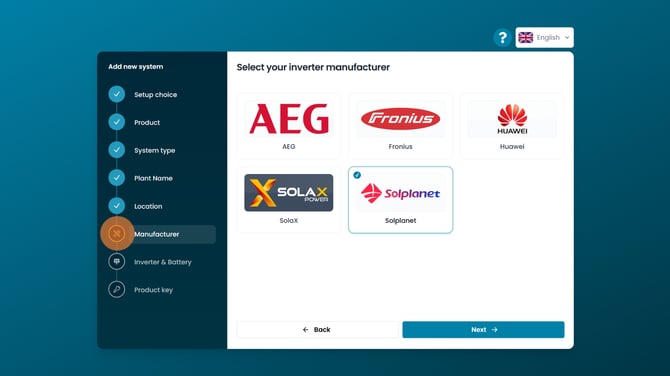
2.6. Select inverter brand
Select the manufacturer that matches the brand of the customer’s inverter.
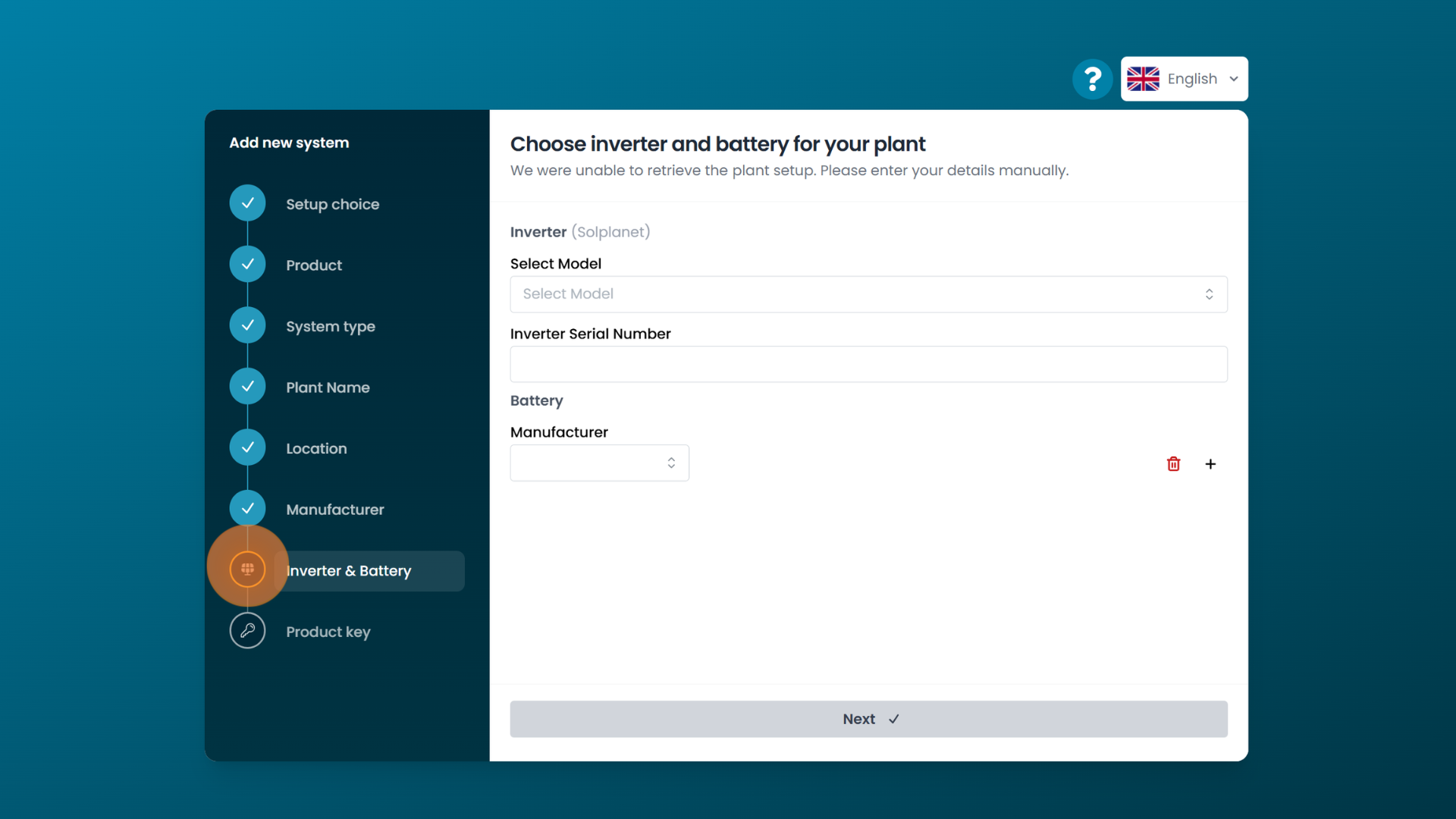
2.7. Connect the customer’s Solplanet system
Enter the inverter model, inverter serial number and battery model.
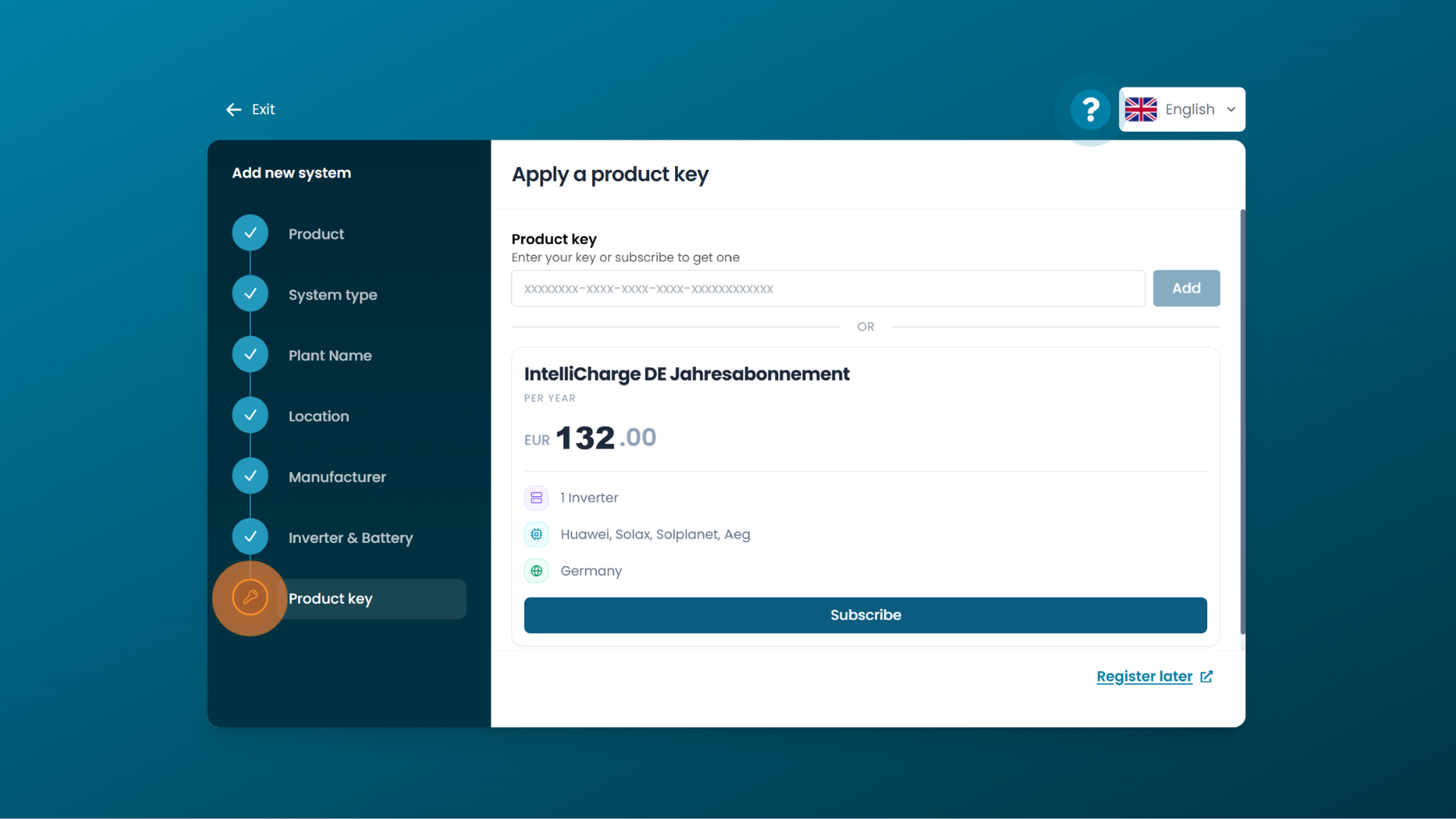
2.8. Enter product key
If you already have a product key from your customer, enter it and click "Add". If you do not have a product key, please email us at info@intellicharge.ai to place an order.
Please note
If Solplanet AI (Solplanet’s own control system) has previously been enabled, it must be disabled. This is done by changing the battery mode to self-consumption in the Solplanet app. This is required before IntelliCharge can take over control of the system.