PNG-1.png?width=120&height=31&name=AIPOWER%20LOGOPrimary%20logo%20(Colour)PNG-1.png)
1. Create an installer account
2. Create a system for a customer
3. Transfer a system to a customer (You are here)
Note! The customer must create an account in IntelliCharge before you can transfer the system to them.
3.1. How the customer creates the account
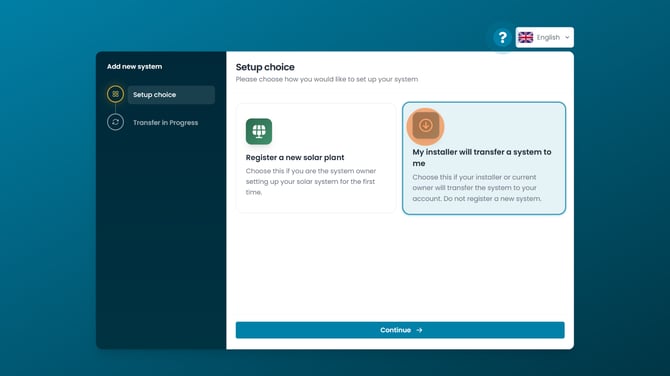
The customer creates an account by registering on the signup page. They can then choose whether to register their solar PV system themselves or have an installer do it for them. The customer should select “My installer is installing IntelliCharge for me” and click “Continue.”
3.2. Notify the installer
The customer will then be asked to notify the installer that their account has been registered and provide the email address they want the transfer to be sent to. The customer will receive an email when the transfer is initiated and must confirm it via the email.
.png?width=670&height=377&name=Installat%C3%B8rguide%20illustrationer%20(2).png)
3.3. Locate the customer's system
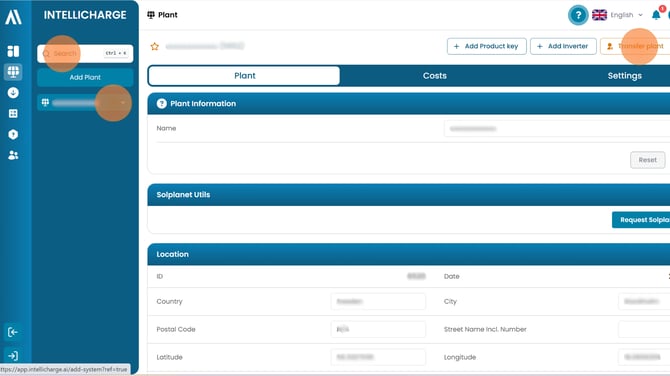
Once the customer has created an account, you can transfer the system to them. Log in to your installer account and click “Plant” in the menu on the left. Search for the customer in the search field and click on the system when it appears below the search field. Then click “Transfer system” in the top-right corner.
3.4. Transfer the system
Enter the customer's email address, accept the terms and conditions, and click “Transfer system.”
.png?width=670&height=377&name=Installat%C3%B8rguide%20illustrationer%20(3).png)
3.5. Customer approves the transfer
The customer will receive an email with a request from the installer to approve the transfer of the system. The customer must click the link and approve the request to complete the transfer and, at the same time, approve that you as the installer retain access to the customer's system and data.
3.6. Follow the customer's system
Once access has been approved, the customer's system will appear under Installer > Links, where you can log in and monitor the system's operation.
If the system does not appear under “Links,” the customer has not approved your access as an installer to the system's data. If this was a mistake, the customer can contact us and provide the installer's name, and we will help restore the connection.
.png?width=670&height=377&name=Installat%C3%B8rguide%20illustrationer%20(4).png)